Start with one image
Upload a product photo, character image, concept render, or reference shot.
Generate a new camera angle from a single image, then turn the original photo and the generated view into a short transition video. Built for product demos, character reveals, ads, and visual presentations.
No timeline editing. No 3D modeling. Start with one image.
Estimated cost: 7 credits
Upload both angles, then start generation.
Upload one image, generate a new camera angle, and animate the transition from original angle to target angle as an 8-second MP4. Ideal for product demos, social content, and ad creatives.
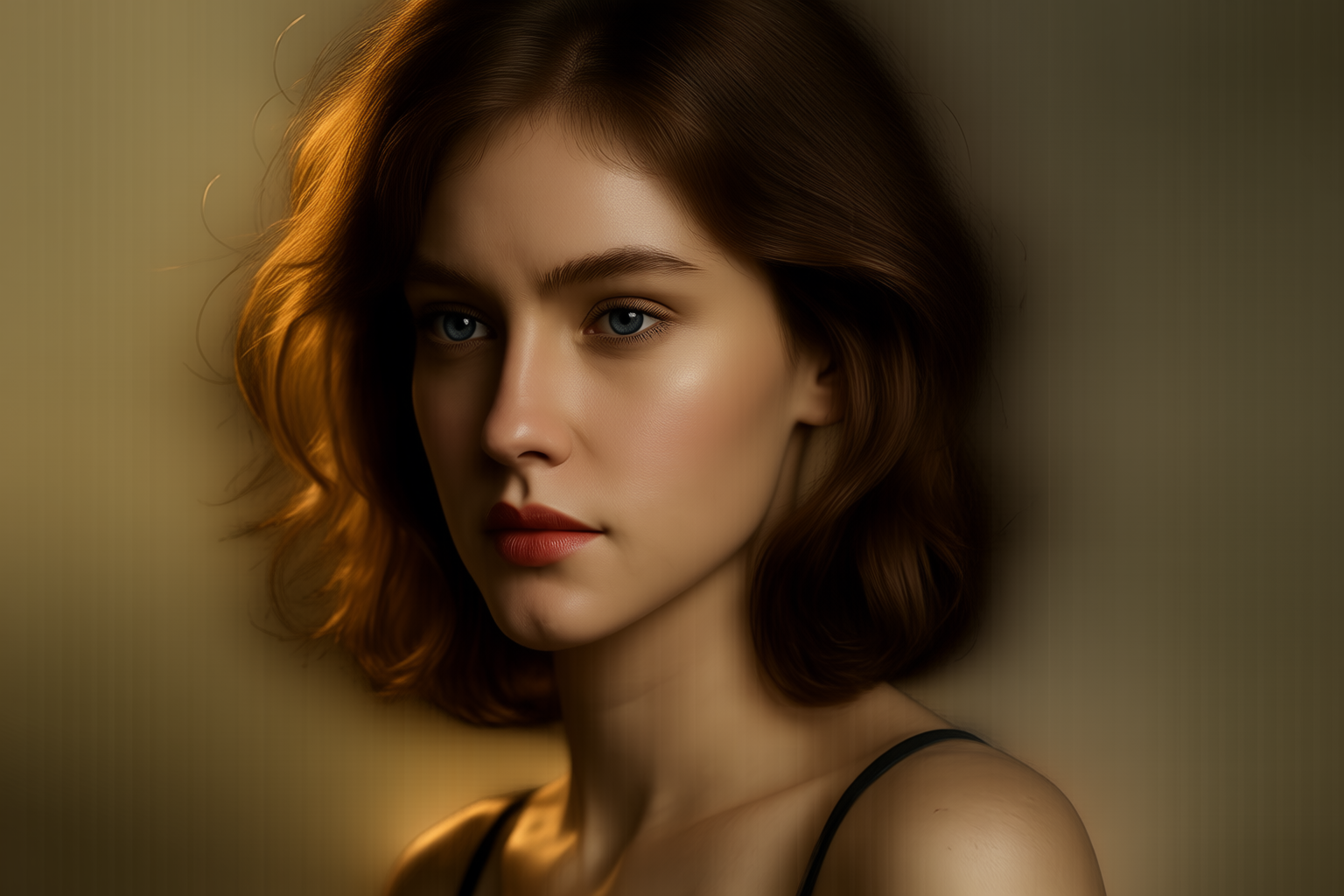
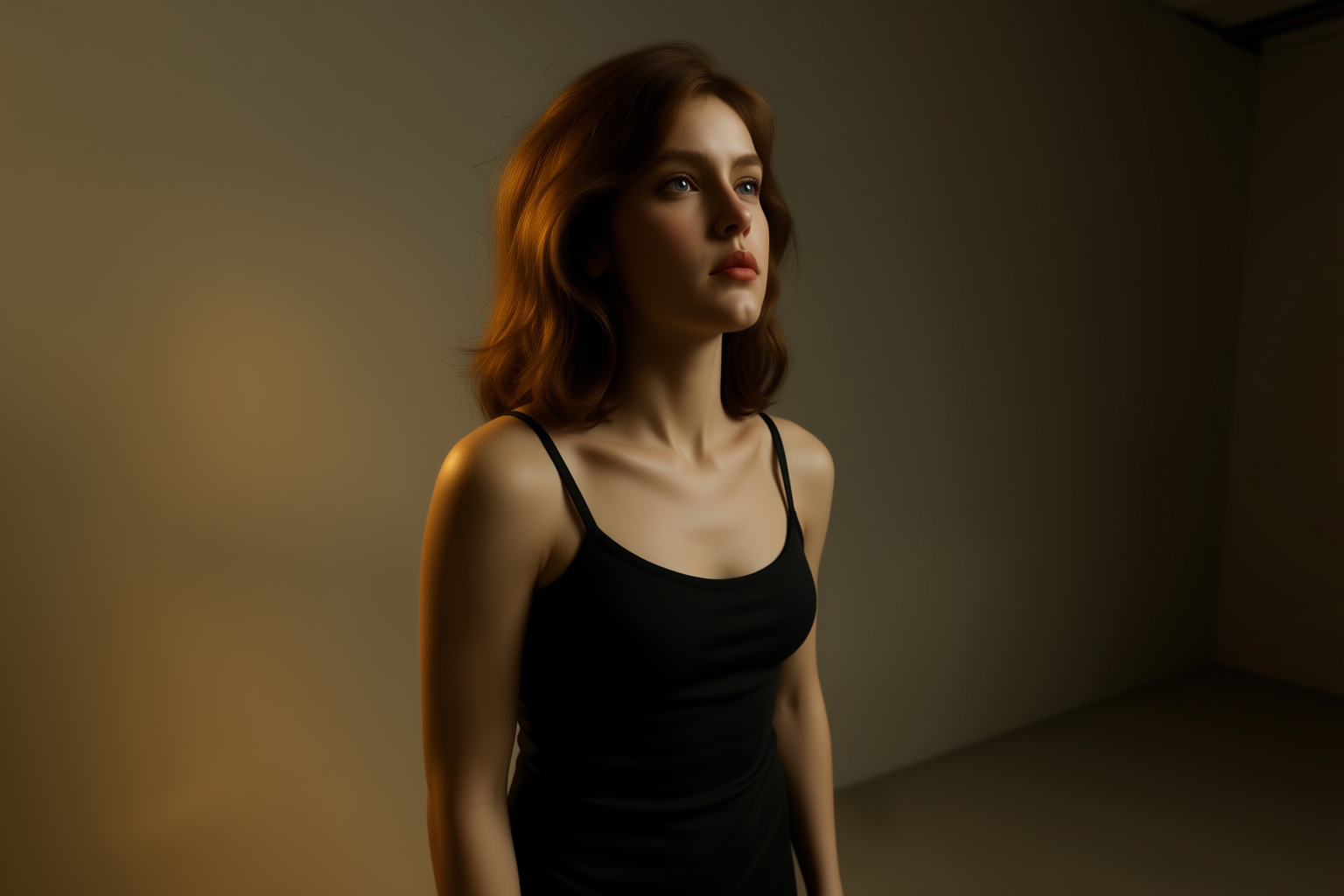
Angle Transition Video
An angle transition video starts from your original image, ends at your generated target angle, and uses AI to synthesize the motion in between.
Instead of presenting two separate stills, you can show the angle shift as a short clip. This is easier to understand and more useful in product pages, social posts, and presentations.
Upload a product photo, character image, concept render, or reference shot.
Create a side view, back view, or another camera position with MultipleAngles.
Use the original image as the first angle and the generated view as the last angle to produce a short transition video.
Best results usually come from one clear subject and a stable composition.
A simple 3-step view of how MultipleAngles turns two angles into a short transition video.
Choose the first visual moment.
Choose the target angle or final shot.
AI fills the in-between motion and exports MP4.
Start with a clear image of a person, product, character, object, or scene.
Choose the new camera angle you want to reveal.
MultipleAngles uses the original image as the first frame and the generated angle as the last frame to create a short motion clip.
Review the result, rerun when needed, and download your final MP4.
MultipleAngles Video is built for one specific task: turning one image and one generated angle into a short, controlled transition clip.
That makes the workflow easier to direct than open-ended scene generation tools.
You are not prompting a full video from scratch. You define the start view and end view, then generate the motion between them.
Current output is fixed to practical defaults for fast sharing and review.
Fixed at 8 seconds per clip
MP4 export for easy playback and distribution
720p output, audio optional
7 credits (no audio) or 12 credits (with audio)
Set expectations before you generate so your first output is more likely to be usable.
Intermediate motion is AI-generated, so small variation can appear between first and last frame. For best results, keep the subject clear and the target angle realistic.
Answers about workflow, quality expectations, and credit usage.
Generate a new angle from one image, then animate the change into an 8-second MP4 clip.